What is AnyTale Editor?
AnyTale Editor is an online studio for creating personalized, illustrated children's books — stories where your child is the hero. You can generate a whole book with AI or build one yourself page by page, then preview it, download it as a PDF, and send it to print.
What you can do in the Editor
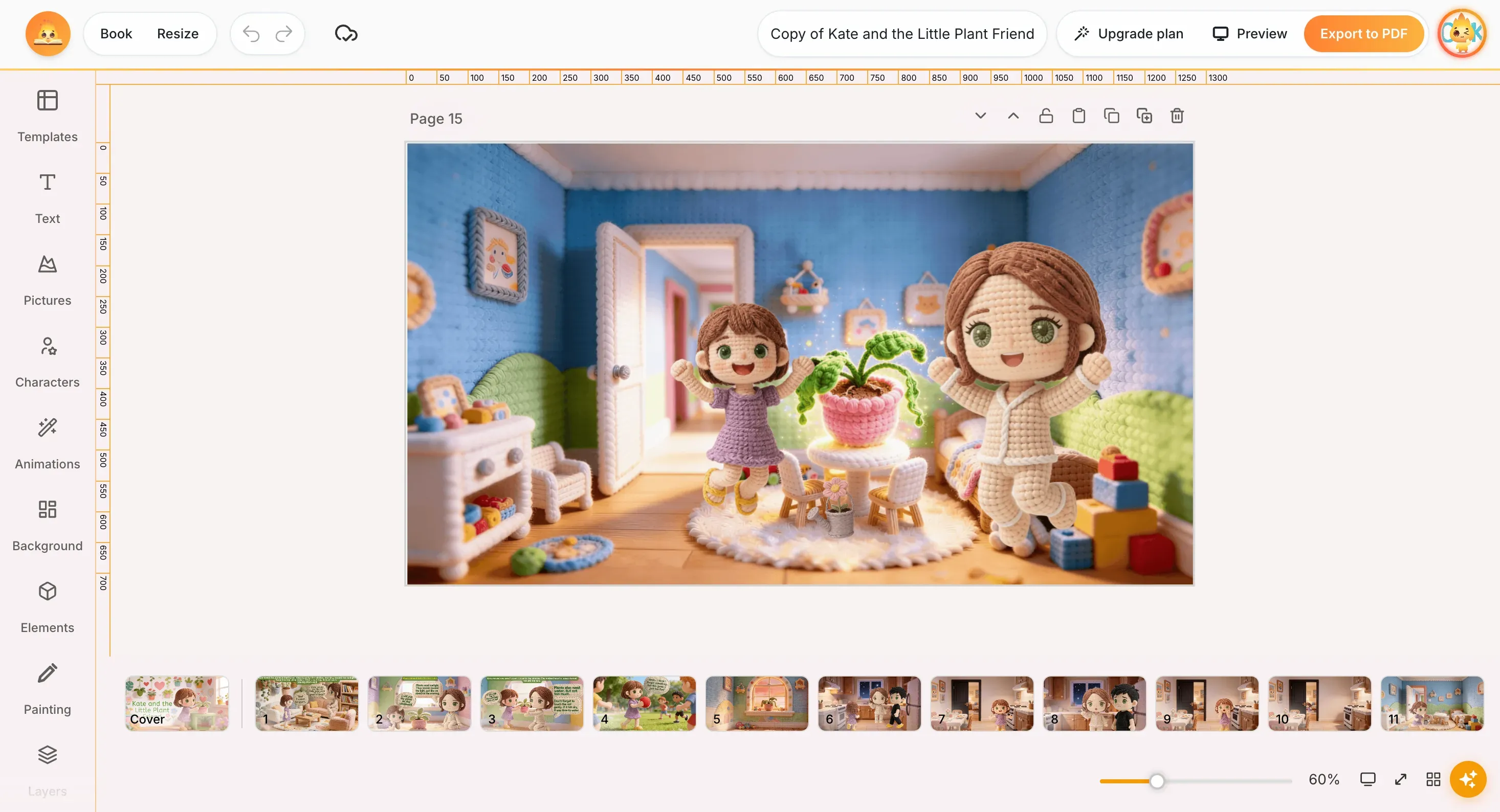
Everything happens on a single visual canvas — no design skills needed. In one project you can:
- Write and style the story text on every page.
- Generate and edit illustrations and keep your characters looking consistent from page to page.
- Add backgrounds, elements, and animations, and arrange pages with a cover, page thumbnails, and layers.
- Preview the finished book, export to PDF, translate it into another language, and order a printed copy.
Two ways to create a book
When you click Create book on your dashboard, AnyTale asks how you'd like to begin. There are two paths — pick whichever suits you:
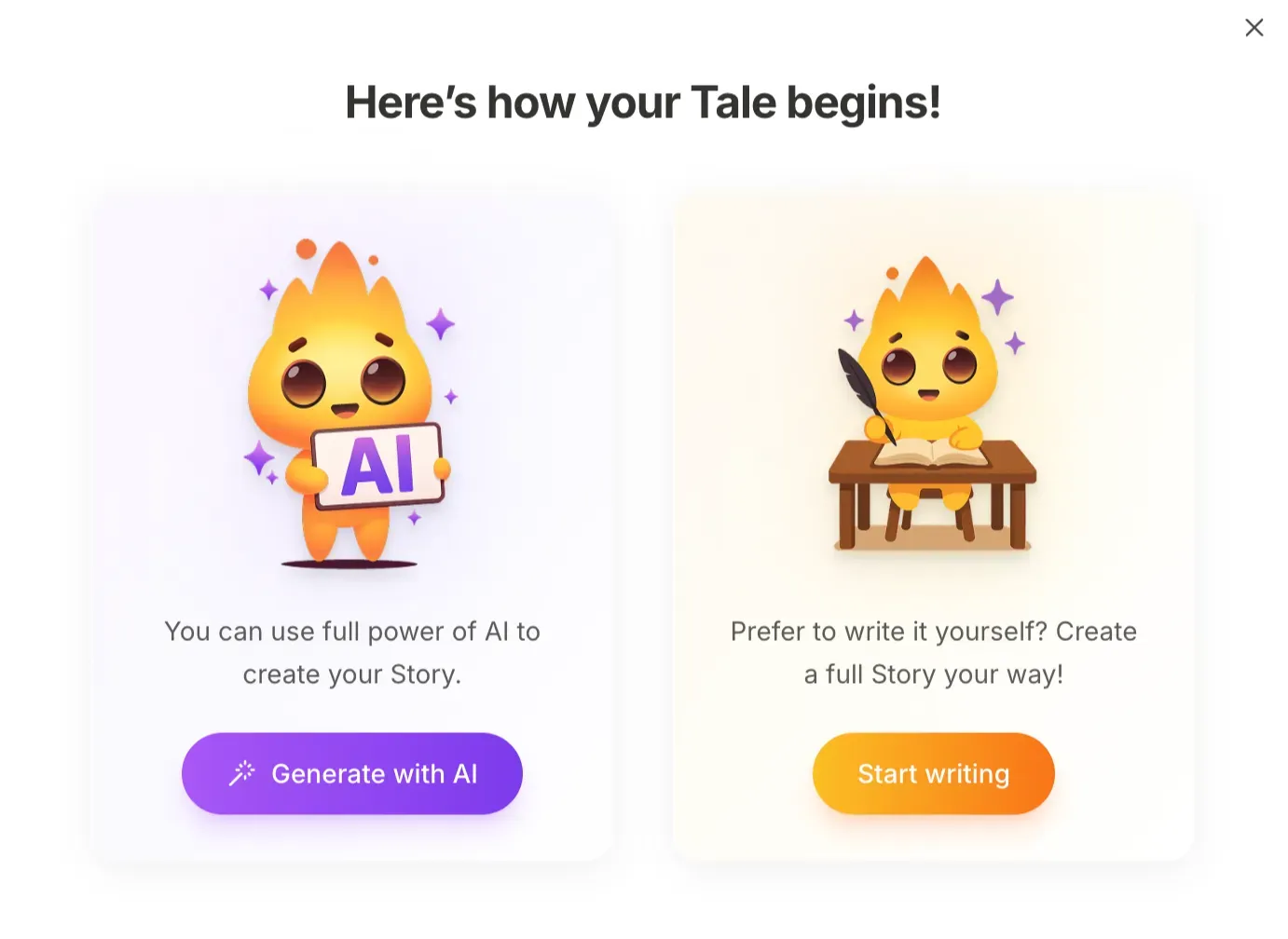
Option 1 — Generate with AI
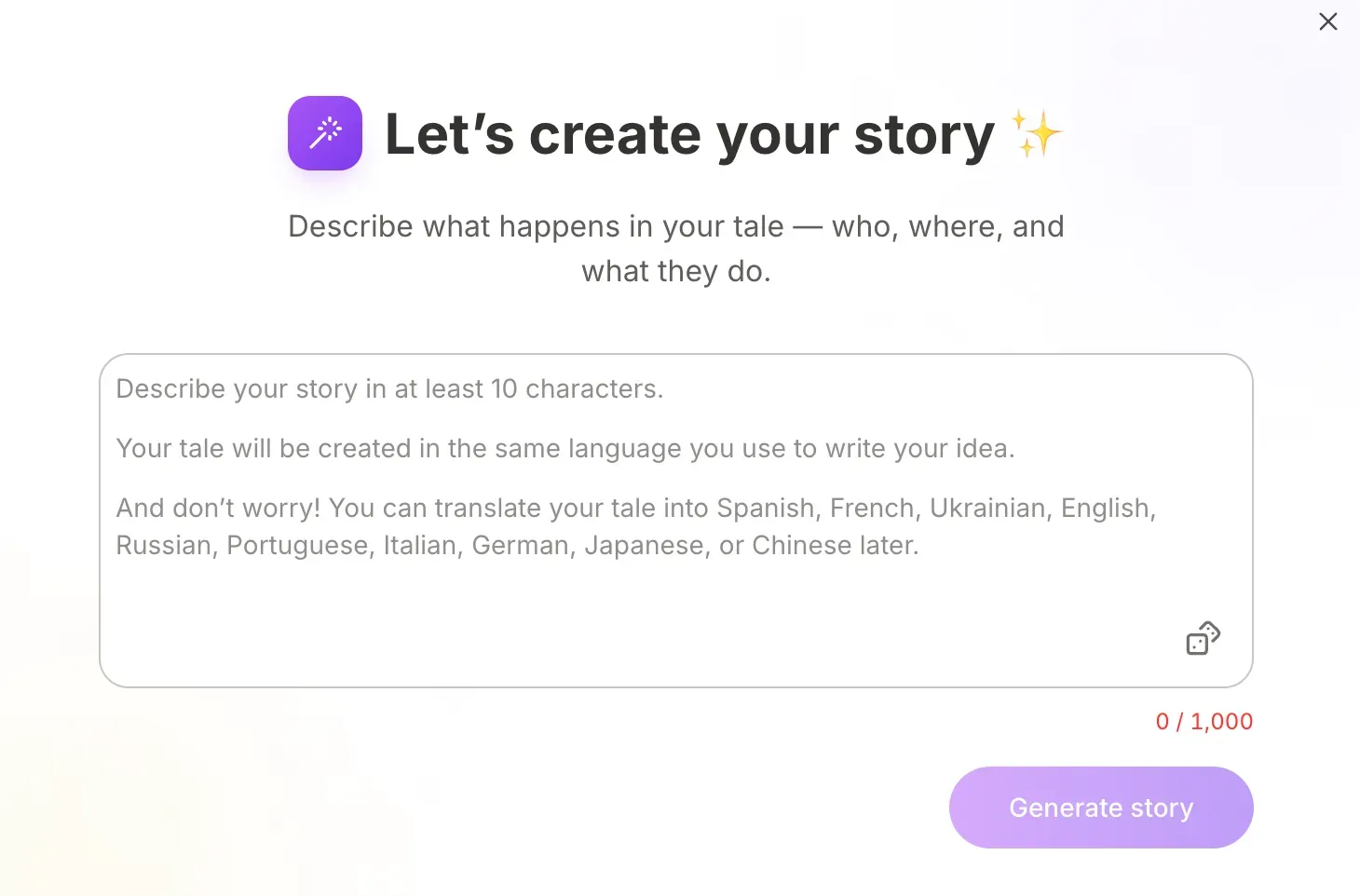
The fastest way to a finished book. Choose Generate with AI, then describe what happens in your tale — who the hero is, where they are, and what they do. A few things worth knowing:
- Your description can be anywhere from 10 to 1,000 characters — a sentence or two is enough to start.
- The tale is written in the same language you type in.
- You can translate it later into Spanish, French, Ukrainian, English, Japanese, Chinese and more.
Press Generate story and AnyTale writes the text and creates matching illustrations, then drops you straight into the Editor to refine anything you like.
Option 2 — Start writing (build it yourself)
Prefer full control? Choose **Start writing ** and AnyTale opens a brand-new, blank book right in the Editor — starting with an empty cover. From here you build the story yourself using the toolbar on the left: add Text, drop in Pictures and Characters, set a Background, and add pages one at a time.
This mode is ideal when you already have your own text, or you want to design each page exactly the way you picture it.
Not sure which to pick? Start with Generate with AI to get a full draft in seconds, then keep editing it by hand. Both paths land in the same Editor — nothing is locked in.
What happens after you create a book
Either path opens your book in the Editor, where every change saves automatically and the book lives under Drafts on your dashboard until you publish it. When it's ready, use Preview to see it as a reader would, Export to PDF to download it, or send it to print.
Share this article
Need help? Have a question? Chat with our team — we're happy to help.