How to Create Your First Book with AnyTale
Creating your first book takes just a few clicks. This guide walks you through the whole journey — from your dashboard to a finished story you can preview, download, and print.
Before you start
Make sure you're signed in and looking at your dashboard — the page that greets you with “Welcome home.” This is where all your books live, grouped into Published, Drafts, and Archive.
Step by step
1. Click “Create book”
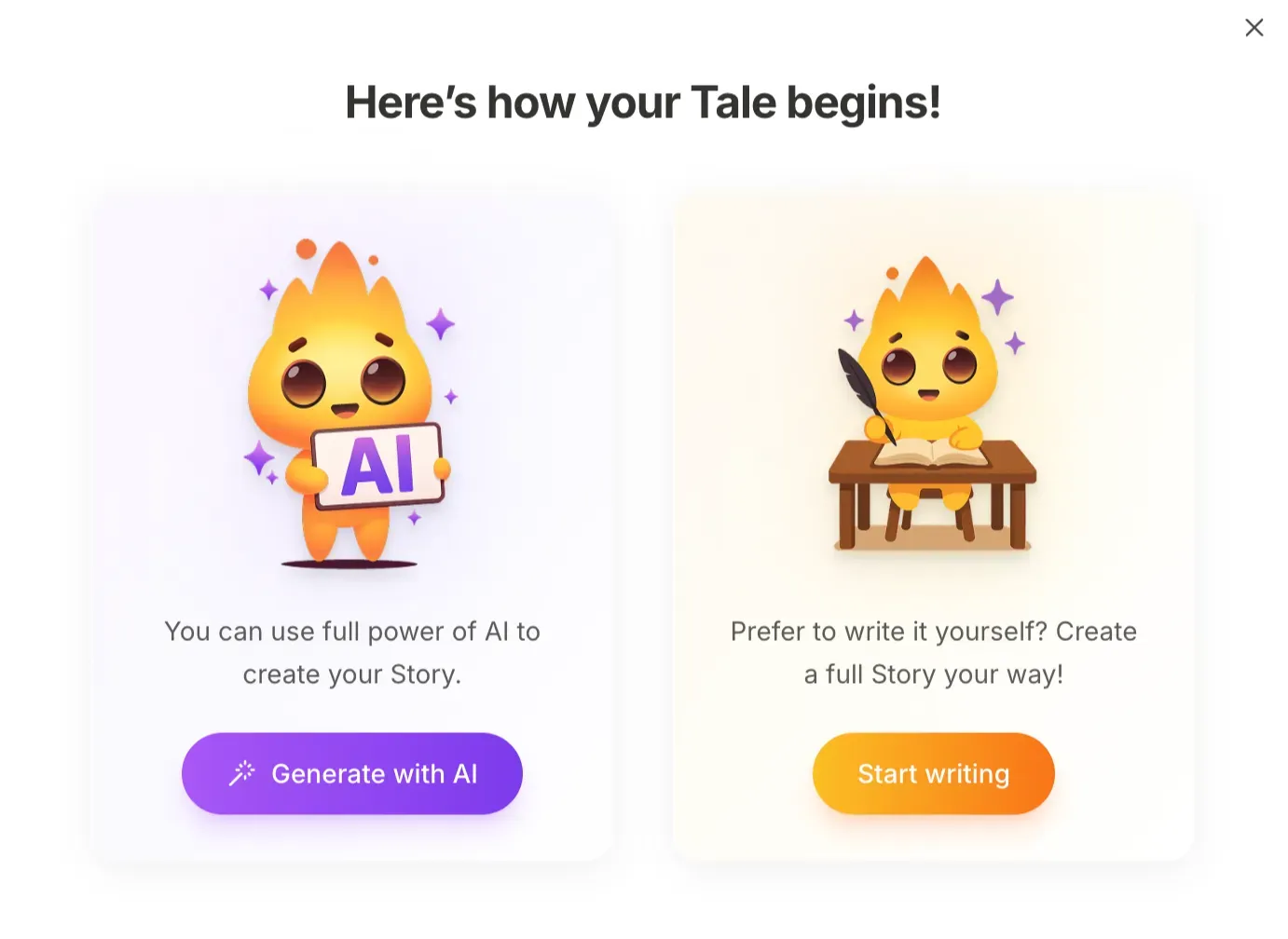
Find the Create book button in the top-right corner of your dashboard (or the Start new adventure button in the welcome card). AnyTale opens a short chooser titled “Here's how your Tale begins!”
2. Choose how to begin
Pick the path that suits you — both end up in the same Editor, so nothing is locked in:
3. If you chose “Generate with AI” — describe your tale
Type what happens in your story — who the hero is, where they are, and what they do. Anything from a short sentence (min. 10 characters) up to 1,000 characters works. Not sure what to write? Use the shuffle icon for a random idea, or Clear to start over.
Your tale is written in the same language you type in, and you can translate it later into any of 10 languages. When you're happy, press Generate story — this opens a short 4-step wizard that walks you through the whole book:
1. Book information Review the AI-generated title, description, and author name. Tap the AI-suggestion refresh for fresh ideas, or edit any field yourself. (Heads up: the title can't be changed after the book is published.)
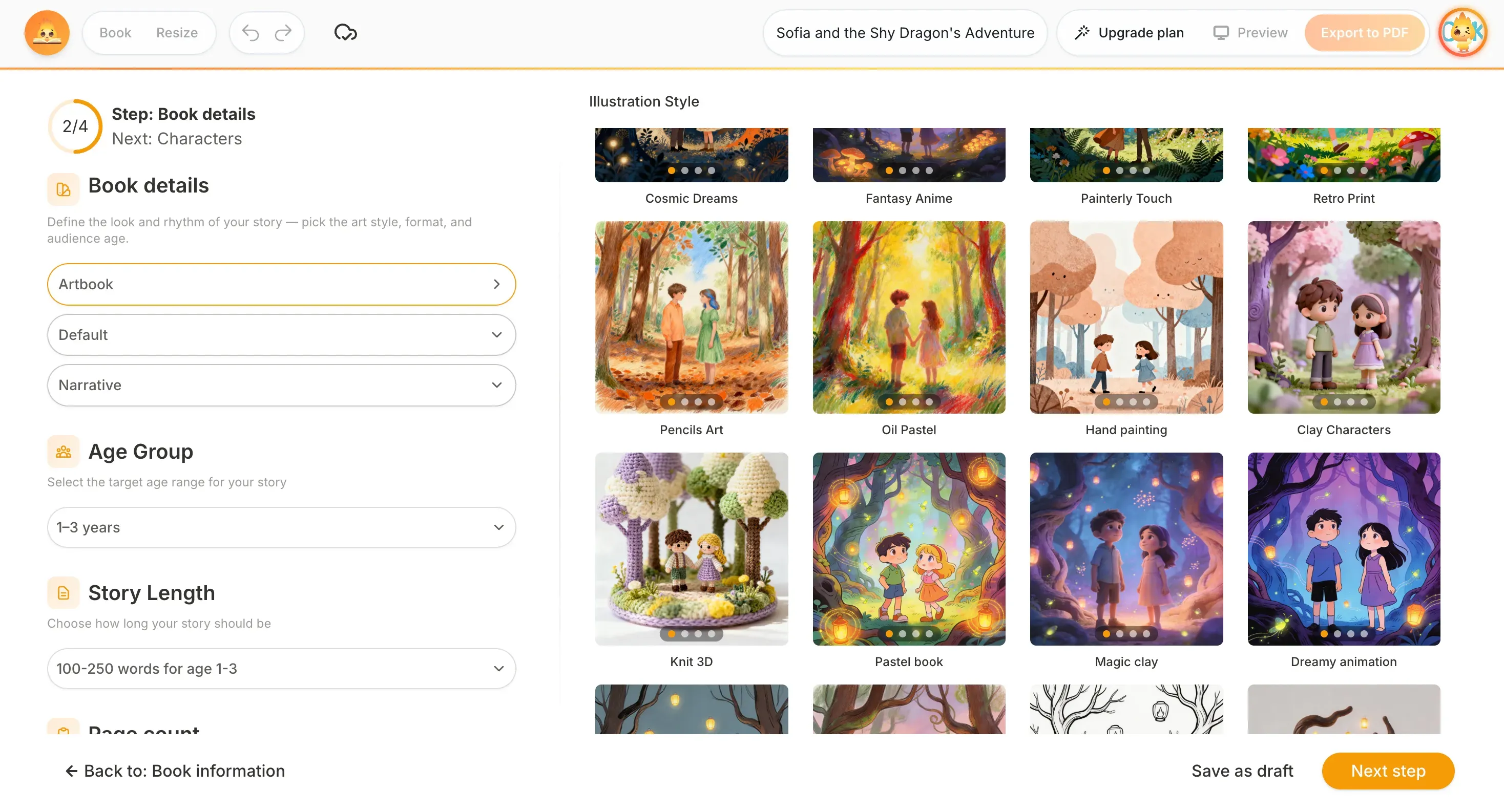
2. Book details Set the look and rhythm of the book: choose an illustration style, the age group, the story length, and the page count (Auto, or pick 1–20 pages).
3. Characters AnyTale builds your cast automatically. For each character you can adjust the name, role, gender, age, and description, upload a reference image, or add more characters — this is what keeps everyone looking consistent across pages.
4. Story AnyTale writes the story and generates matching illustrations page by page, then opens the finished book in the Editor for you to refine.
4. If you chose “Start writing” — build from a blank book
AnyTale opens a new, empty book on the cover page. Use the toolbar on the left to add Text, Pictures, Characters, and a Background, then add pages with the + below the canvas.
5. Edit and personalize
In the Editor you can tweak anything — rewrite text, regenerate an illustration, swap a background, rearrange pages, or rename the book by clicking its title at the top. Every change saves automatically.
6. Preview, export, or print
Click Preview to see the book as a reader would. When it's ready, use Export to PDF to download it — or order a printed copy.
Share this article
Need help? Have a question? Chat with our team — we're happy to help.