How to Add and Style Text in Your Book
Text is how your story is told. In the Editor you can add new text, edit the words already on a page, and style everything — fonts, size, color, and alignment — until it looks just right.
Adding text to a page
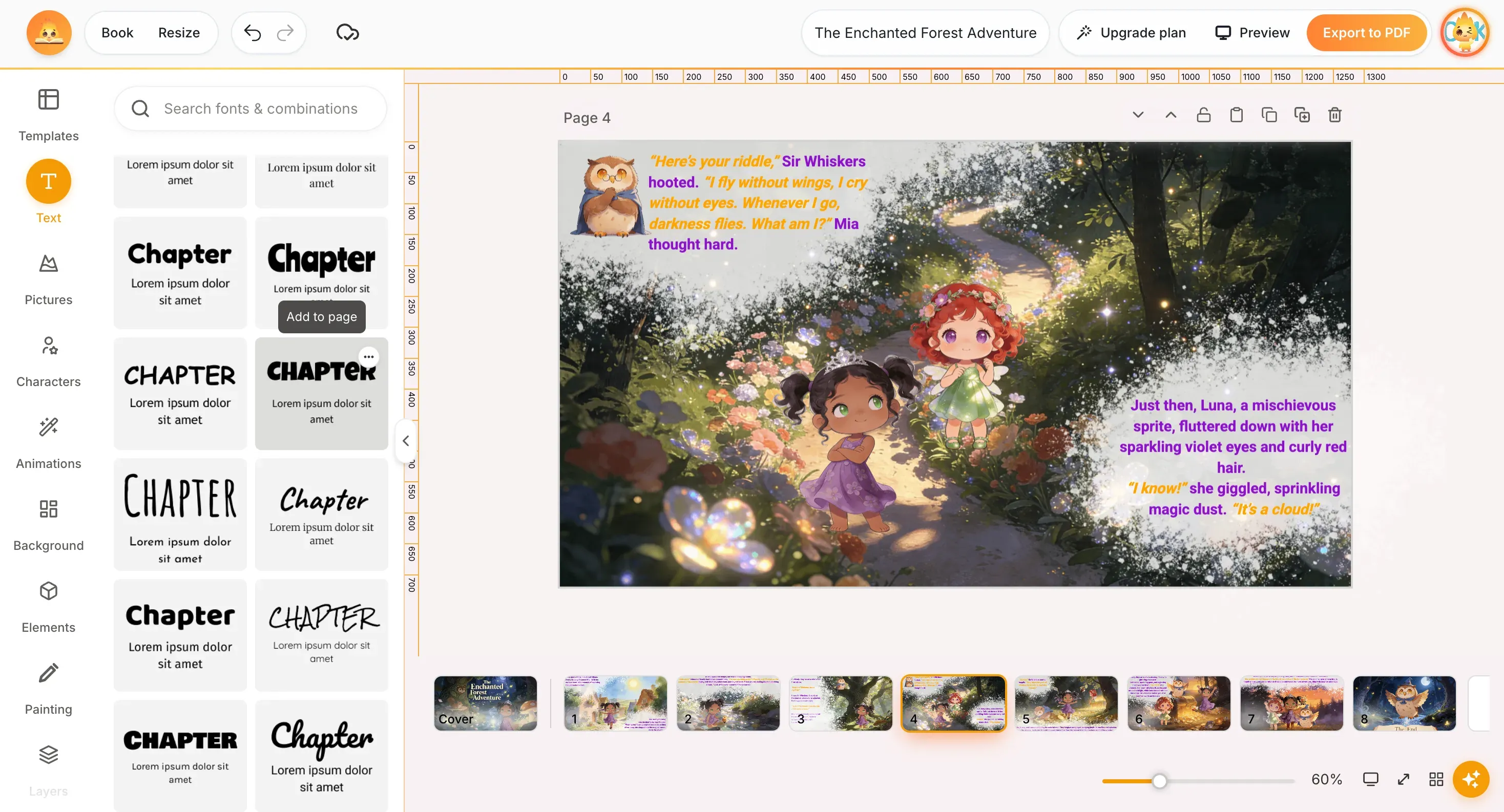
Open the Text tool on the left toolbar. From here you have a few ways to add text:
- Add text field — drops a fresh, empty text box onto the page.
- Standard styles — one-click Add a heading, Add a subheading, or Add a little bit of body text, each pre-sized for its role.
- Textboxes — decorative framed text boxes (great for cute captions); press Show all to browse them.
- Combinations of fonts — ready-made font pairings (Book/Author or Title/Body) so your title and text look good together.
You can also search fonts and combinations from the box at the top of the panel.
Editing text that's already on a page
To change words that are already there — like the story text on an AI-generated page — simply click into the text box and start typing. Select any word or passage to replace it. Your edits save automatically.
Styling your text
Select a text box (or highlight part of the text) and the formatting toolbar appears along the top of the canvas. Here's what each control does:
| Control | What it does |
|---|---|
| Font | Pick the typeface from the font dropdown (e.g. Roboto). |
| Size (− / +) | Increase or decrease the font size, or type an exact value. |
| Color (A) | Change the text color. |
| Bold / Italic / Underline | Apply B, I, or U styling to emphasize text. |
| Case (Aa) | Switch letter casing — for example, ALL CAPS. |
| Alignment | Align text left, center, right, or justified. |
| Lists | Turn lines into a bulleted or numbered list. |
| Line spacing | Adjust the spacing between lines of text. |
| Effects | Add text effects such as shadow or outline for readability over illustrations. |
| Position | Move the text box forward or back, and align it on the page. |
Moving, resizing & duplicating a text box
Drag a text box to reposition it, or drag its corner handles to resize. The small toolbar that floats above a selected box lets you duplicate, lock, or delete it.
Tip: Placing text over a busy illustration? Add a shadow or outline from Effects, or drop a Textbox frame behind the words — both keep the story easy to read.
Share this article
Need help? Have a question? Chat with our team — we're happy to help.